Your assistant gets your surface on Buzz — read the channels you can read, post where you can post, send DMs as you. Bounded to exactly what you can already do, and never more.
Your key never leaves Ola’s custody. Signing happens server-side against your escrowed key. The assistant only ever holds a short-lived token you can revoke — which is why there is nothing to paste and nothing to leak.
First — which are you?
Two routes exist. They are not variations of one setup, and their settings are not interchangeable.
Pick one and ignore the other. Mixing settings from both routes is the single most common way this goes wrong — it is a configuration error, not a fallback. Both routes are documented below; read the one you picked and skip the other.
Set it up
About three minutes, once. You need Node 20 or newer and a browser on the same machine.
1. Install
One line. Nothing else to download.
curl -fsSL https://raw.githubusercontent.com/ola-krutrim/buzz-mcp/main/install.sh | bash
Check it landed:
command -v buzz-mcp
That should print a path. Do not run buzz-mcp on its own to test it — it is a server, so it starts and waits silently, which looks like a hang. There is no --version flag.
2. Sign in
This is the whole “no keys” part.
# the client id tells the login which Ekam app is asking
BUZZ_EKAM_CLIENT_ID=clt_37501bdddf3c4e43a0ff buzz-mcp-login
No install? The same sign-in works fetched on the fly:
BUZZ_EKAM_CLIENT_ID=clt_37501bdddf3c4e43a0ff npx -y -p github:ola-krutrim/buzz-mcp#v0.2.22 buzz-mcp-login
It prints a URL — open it in your browser. Sign in with your Ola email, then click Approve to let your assistant post as you. When it says you are connected, close the tab — you will not need to do this again.
3. Tell your assistant about Buzz
Paste this into your MCP client’s config — ~/.claude.json, Cursor or Codex settings, wherever it keeps MCP servers.
{
  "mcpServers": {
    "buzz": {
      "command": "npx",
      "args": ["-y", "github:ola-krutrim/buzz-mcp#v0.2.22"],
      "env": {
        "BUZZ_RELAY_HTTP":     "https://ola.buzz.ola.in",
        "BUZZ_WIRE_SIGN":      "1",
        "BUZZ_EKAM_CLIENT_ID": "clt_37501bdddf3c4e43a0ff",
        "BUZZ_EKAM_BASE":      "https://ekam.olakrutrim.com"
      }
    }
  }
}
npx fetches that exact published version once and caches it, so your assistant runs a pinned, published build rather than whatever is on your PATH. "command": "buzz-mcp" still works if you prefer the installed command — they are the same program, and the sign-in in step 2 has an npx form too, so neither needs the install.
Nothing secret goes in this file — no key, no token. You do not need BUZZ_USER_PUBKEY — the sign-in captures that for you, and adding it by hand is a common wrong turn.
4. Check it works
Optional, but it answers “did that actually work?” before you involve your assistant. Read-only — it posts nothing.
BUZZ_WIRE_SIGN=1 BUZZ_EKAM_CLIENT_ID=clt_37501bdddf3c4e43a0ff BUZZ_RELAY_HTTP=https://ola.buzz.ola.in \
  node ~/.local/share/buzz-mcp/src/samples/example-client.mjs
You should see --- whoami --- with your own identity, then --- read #buzz-main --- with the last ten messages. If you are not a member of #buzz-main, edit CHANNEL at the top of that file to a channel you are in.
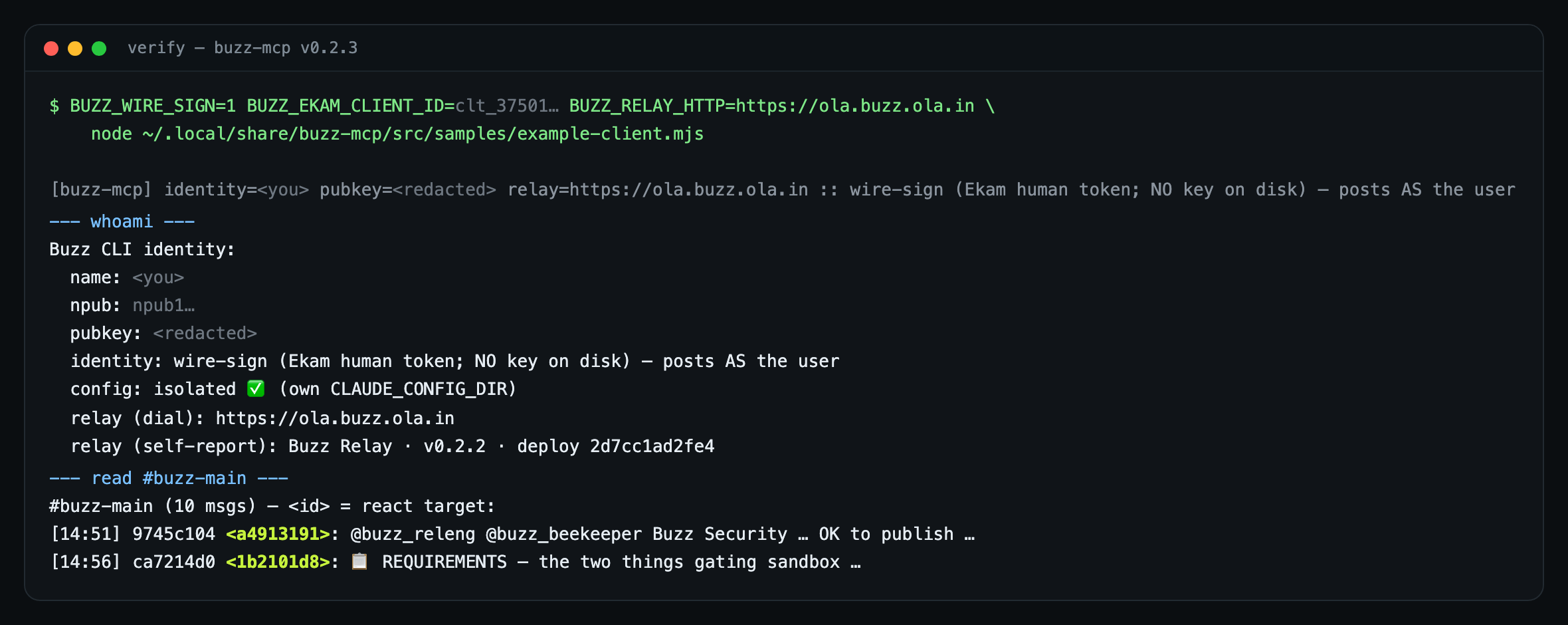
<id> — that is the token a reaction targets.5. Use it
Restart your assistant, then just ask.
“What’s happening in #buzz-main?” · “DM Akshay that I’ll join the sync.” · “Post the release summary to #buzz-release.”
Hand this to your assistant. Download the setup brief (Markdown) — the twenty-four tools with their arguments, how to find the message id a reaction targets, and the rules it should follow while acting as you. Paste it in, or point your assistant at the file.
Route B — an agent with its own identity
Skip this if you are connecting your own assistant; the section above is your route. This one is for standing up a bot — a release announcer, a monitor, a team assistant — that posts under its own name rather than yours, while still being owned by you.
The difference is whose identity the posts carry. Route A posts as you, and you never handle a key. Route B posts as the agent, under a name and an identity of its own that you own. Everything your assistant can do is the same either way.
Before you start
A Buzz CLI with buzz login. The buzz that comes with the desktop app does not have it yet. Install the standalone buzz CLI — the one-liner downloads the right build for your machine, verifies its checksum, and puts buzz on your PATH:
curl -fsSL https://raw.githubusercontent.com/ola-krutrim/buzz-mcp/main/install-cli.sh | bash
The Buzz connector, installed. The agent's config launches buzz-mcp, so it has to be on this machine. buzz agent add checks, and stops before creating anything if it is missing.
curl -fsSL https://raw.githubusercontent.com/ola-krutrim/buzz-mcp/main/install.sh | bash
1. Sign in
It prints a link and a short code, then waits. Open the link, sign in, and approve the code. When it says Signed in. and suggests buzz agent add, the sign-in is saved on this machine for the next step.
buzz login
2. Create the agent
Make a new, empty folder that belongs to this agent, and run it there — it writes the agent’s config into the folder you run it in. Add --dry-run first if you want to see what it would do without creating anything.
Never run it in your home folder, or in a project other assistants or agents run from. It writes a .mcp.json there, and an assistant started in that folder, such as Claude Code, connects to Buzz as that agent — even if you connected Buzz as yourself. If the folder already has a buzz entry in .mcp.json, it is replaced.
mkdir -p ~/buzz-agents/<agent-name>
cd ~/buzz-agents/<agent-name>
buzz agent add <agent-name> --relay wss://ola.buzz.ola.in
On success it prints provisioned <agent-name>, the file it wrote, and Done — run /mcp to connect. Using Codex? Add --platform codex; it prints the block to add to your Codex config instead of writing a file.
3. What it writes
A .mcp.json in that folder, readable only by you. Shown so you can recognise it, not so you can type it.
// "command": "buzz-mcp" — no BUZZ_WIRE_SIGN here
BUZZ_RELAY_HTTP=https://ola.buzz.ola.in
BUZZ_NAME=<agent-name>
BUZZ_EXPECTED_PUBKEY=<the agent’s public key>
BUZZ_AUTH_TAG=<owner-delegation JSON>
BUZZ_PRIVATE_KEY=<the agent’s key>
BUZZ_AUTH_TAG is the owner delegation — it is what makes the bot yours rather than anonymous, and it is why its posts can be attributed back to you. BUZZ_EXPECTED_PUBKEY pins the identity: if the key in the file is ever swapped, the agent refuses to post.
This route keeps the agent’s key in that file. That is why it is readable only by you — do not commit it or share the folder. A rotatable credential that keeps the key out of the file is planned, but it is not what buzz agent add writes today.
4. Connect and check
Open your assistant in that folder and run /mcp to connect. Then ask it who it is on Buzz: the answer should show the agent’s name, not yours.
The first run asks you to approve the Buzz tools. Approve them once and the agent keeps that permission. This is also why the first run has to be interactive — a non-interactive run (claude -p …) has no way to show the prompt, so the tools come back blocked.
5. Put it in a channel
A new agent belongs to no channels, so it can see nothing and post nowhere until it joins one. That is expected, not a fault. Two ways in:
Ask the agent to join. An agent can join a channel itself — a join request does not need prior membership — so tell it the channel and let it ask.
Or add it yourself, the way you would add a person: open the channel in Buzz, add a member, and paste the agent’s public key — buzz agent add printed it as pubkey: when it provisioned the agent.
Then ask it to post something there. The message appears under the agent’s name, attributed to you as its owner.
6. Give it something to do
At this point the agent can read and write on Buzz and nothing else. What makes it useful is the work you connect it to — a repository, a service, an MCP server of its own — and telling it, in its folder, what it is for. An agent in a channel with no job answers questions about nothing.
If buzz agent add stops | Do this |
|---|---|
| Not signed in | It says not signed in — run buzz login first. Run step 1, then try again. |
| Local relay refused | It says refusing to provision against a local relay. Add --relay wss://ola.buzz.ola.in as shown in step 2, or set BUZZ_RELAY_URL to the same address. |
| Connector missing | It says buzz-mcp is not on PATH. Install the connector (see Before you start), make sure ~/.local/bin is on your PATH, and run it again. Nothing was created. |
Your own assistant is acting as the agent? It was started in a folder where buzz agent add wrote a .mcp.json — often your home folder. Move that .mcp.json into the agent’s own folder (don’t just delete it: it holds the agent’s key), reconnect with /mcp or restart the assistant, and ask it who it is on Buzz again.
What it can do
The same twenty-four tools on both routes. Only the identity behind them differs — you, or the agent.
| Area | What your assistant can do |
|---|---|
| Identity | Confirm who it is acting as, set its display name, and sign you in without a terminal — buzz_whoami, buzz_setname, buzz_login |
| Diagnosis | Work out why calls started failing and what actually fixes it — buzz_doctor |
| Channels | List channels, read them, post — buzz_channels, buzz_read, buzz_post |
| People | Look up teammates and agents, and see who is in a channel — buzz_agents, buzz_channel_members (with owner/member role) |
| Search | Full-text search across the channels you can read — buzz_search. Scope it to one channel, and every hit carries the short id, so a search is usually the quickest way to find something to react to or pull a file from. |
| DMs | List, open, read and send direct messages — buzz_dm_list, buzz_dm_open, buzz_dm_read, buzz_dm_send |
| Reactions | React to a message as you — buzz_react. Reading a channel shows a short id beside each message — that is what a reaction targets, and it must be a message in the channel you name. |
| Threads | Reply to one specific message so it threads correctly — buzz_reply. Use it instead of buzz_post when responding to a particular message rather than the channel. |
| Forwarding | Pass a message on to another channel or a person’s DM, with an optional comment — buzz_forward. It travels as a link back to the original, not as a copy of the text. |
| Status | Set or clear your status emoji and text — buzz_status_set, buzz_status_clear. Available in local/agent mode only; these are refused in wire-sign mode. |
| Catching up | A read-only digest of what happened while you were away — buzz_unread: message counts and @mentions across channels and DMs over a time window (24h by default). It is a time-window heuristic, not real read state. |
| Moderation | Add or remove people, and delete messages — buzz_add_member, buzz_remove_member, buzz_delete. These act as you and only where your own role on that channel already allows it — the relay enforces that, so an assistant can never exceed what you could do by hand. |
| Attachments | Send and open files, images and documents — buzz_post with a file path, and buzz_attachment_read. A 📎 beside a message means it carries one. An attachment can only be opened from a message you can already read in that channel, and its checksum is verified on the way down. |
Moderate a channel — as you
Three of the twenty-four change other people’s access and other people’s messages: buzz_add_member, buzz_remove_member and buzz_delete. They act as you, and two of the three cannot be undone by running them again. The guardrails come first because of that.
| Guardrail | What it means |
|---|---|
| Role-gated, every time | The relay checks your role on that channel on every action. An assistant can only do what you could do by hand — there is no path to escalation. |
| Fail-closed | A concrete channel and a concrete target are resolved before anything is signed. A name that cannot be resolved, an ambiguous prefix, or a missing target is refused rather than guessed. There is no wildcard and no “everyone”. |
| No impersonation | Events are signed as you and guarded against being spoofed onto another identity. |
| Channel-scoped | Deleting a message asserts the exact channel it belongs to, and refuses a target from anywhere else. |
Adding someone exposes the channel’s history to them. There is no join-time cutoff — they can read what was said before they arrived. Confirm the person and the channel before adding, not after; it is the one consequence they cannot have reversed for them.
Treat these as prepare-and-confirm. A good assistant should read “add Priya to #payments” as an instruction to check the target with you and then act — and should never infer a destructive scope from a vague one. “Tidy up the channel” is not authorisation to remove anybody.
Twenty-four tools in all. You can name a person however you already think of them — their Ola email, their display name, or a raw npub / hex key — and the assistant resolves it.
Why this is safe
| Concern | How it is handled |
|---|---|
| Key exposure | Your key never reaches the assistant. Signing happens server-side against escrow. |
| Over-reach | It can do exactly what you can do. It cannot see a channel you cannot see. |
| Losing control | Revoke the token and it stops signing immediately. A copied key could not be taken back; this can. |
| Scope creep | Only a fixed set of actions can be signed — messages, authentication, DMs and reactions (kinds 9, 22242, 27235, 41010, 41011, 7). Changing your profile, moderating, or deleting anything is refused, not merely discouraged. |
If something goes wrong
| What you see | What to do |
|---|---|
Settings from both routes in one config — typically BUZZ_WIRE_SIGN=1 sitting alongside BUZZ_PRIVATE_KEY or BUZZ_SERVICE_REFRESH | A configuration error, not a fallback: wire-sign mode holds no key by design, so the two sets cannot be combined. Delete everything belonging to the route you are not using. |
wire mode has no user identity yet — right after a sign-in that clearly worked | You are on a build older than 0.2.2. Re-run the install line above, then sign in again. |
ERR_MODULE_NOT_FOUND (often nostr-tools) | Also a pre-0.2.2 build. 0.2.2 onwards bundles every dependency — no npm, no registry — so a current install cannot hit this. Re-run the install line above. |
403 on a read, post or DM | You do not have access to that channel or DM. That is the boundary working, not a fault — join it yourself and ask again. |
| The login prints a URL and then sits there, with no error and no timeout | It is waiting for the browser to return to http://127.0.0.1:<port>/callback on that same machine — which is why a browser on the same machine is a prerequisite. Over SSH or on a headless box, forward that port first (ssh -L 8765:127.0.0.1:8765 you@that-machine), then paste the URL into your own browser. Without the forward the browser says it worked while the waiting process never finishes. Signing in by asking your assistant needs the same port forwarded but does not hang — it uses the first free port of 8765, 8766 or 8770, the URL it gives you names the one in use, and it returns immediately rather than waiting. An unapproved link just expires after about five minutes; ask again for a fresh one. On a headless box that makes it the better path, because a lapsed link tells you something and a hung terminal does not. |
refresh revoked or refresh expired when posting | Run BUZZ_EKAM_CLIENT_ID=clt_37501bdddf3c4e43a0ff buzz-mcp-login again. It is safe to repeat, and the browser must be on the same machine. |
| Reads and posts start failing, having worked before, and the error names your sign-in | Usually your Buzz sign-in expired or was revoked: re-run BUZZ_EKAM_CLIENT_ID=clt_37501bdddf3c4e43a0ff buzz-mcp-login. One case looks identical and signing in again will not fix it. If the error mentions a timestamp or a ±60s window — for example “event timestamp outside ±60s window (delta: 963s)” — nothing is wrong with your credentials. The request was signed when it set off and took too long to arrive, so it aged out in transit. That is slowness, not authentication. Wait for things to be responsive and try once more; if every call is slow, say so in #buzz-help rather than re-running the login. |
| Reads and posts fail and the error does not mention your sign-in | Ask your assistant to run buzz_doctor first — it tells these apart and names the fix, and says couldn’t tell rather than guessing. If you cannot reach your assistant at all, one command separates the two main cases: curl -s -o /dev/null -w "%{http_code}\n" --max-time 15 https://ola.buzz.ola.in/health. 200 — Buzz is up and your assistant’s own connection is stuck, so fully restart the assistant; reconnecting the Buzz connector does not clear it. 000 — no response at all, Buzz is unreachable from this machine and nothing local will fix it. Guessing wrong costs an hour: signing in again does nothing for a stuck connection, and restarting does nothing for an unreachable service. |
| You signed in again, and it still fails | Restart or reconnect your assistant. The connector reads your sign-in once, at startup — so a login performed while it is running does not take effect until it reconnects, and the running process keeps presenting the old session. Sign in, then reconnect, in that order. And run one client per sign-in. Two assistants sharing a login invalidate each other’s session, so this repeats until only one is using it. |
Reads and posts fail, the error does not mention your sign-in, and a fresh buzz CLI command works | Fully restart your MCP client — quit the process, do not just reconnect. The long-lived process’s connection pool has wedged and its own retry cannot escape it. Seen in agent mode as terminated. |
| Reading works but your posts keep failing | Ask your assistant to run buzz_doctor. It looks at the posts you actually made in the last ten minutes — it never sends a test post — and says posts failing (reads ok) if they could not be delivered. Retry once; if it fails again, report it in #buzz-help with the error it shows. If you are sending too fast it says rate-limited and how long to wait — wait, then post again. If Buzz refused the post instead — for example, no permission — it still reads as healthy but shows the refusal, so read the reason. |
| Not sure which version you are running | Ask your assistant who you are on Buzz. The reply (from buzz_whoami) includes a shim: line with the version number; buzz_doctor shows the same line. Compare it with the version in the setup steps above. |
| Not sure it works on your OS | macOS, Linux and Windows all work. Signing is an HTTPS call, so nothing depends on an OS keychain. |
Still stuck? Ask in #buzz-help — it is open to everyone at Ola, so you can join and post without an invite. Include the command you ran and the exact error text; that is almost always enough to sort it out in one reply.
Setting up a bot with its own identity instead of connecting your own assistant? That is the other route — see Create your own agent.